Download & Install PS4 Games (PKG/FPKG): Complete Guide
PS4 3,686 2026/10/22 Raen
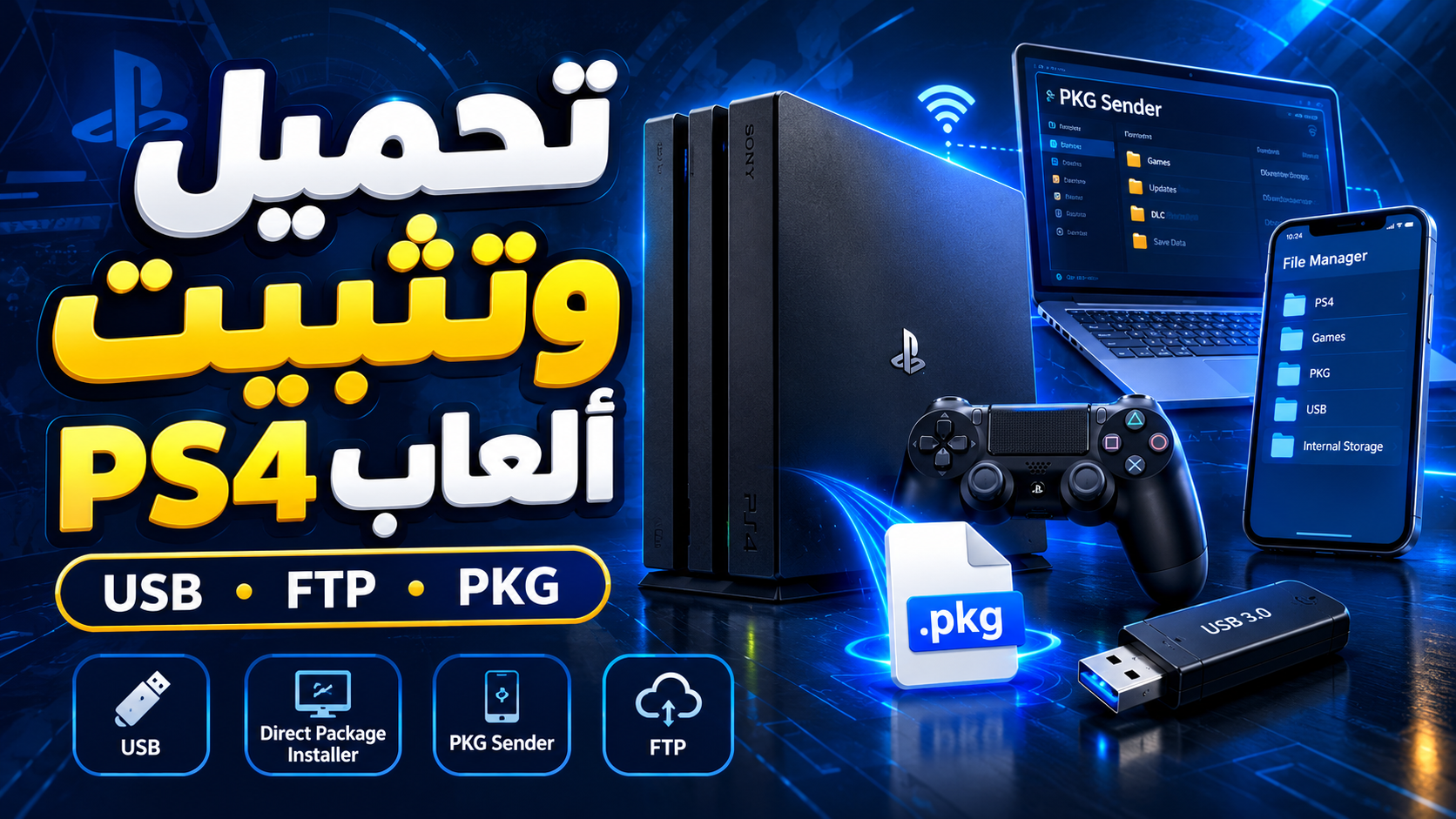
A comprehensive guide to download and install PS4 PKG/FPKG games via USB flash, phone MTP cable, network, or FTP, with troubleshooting and best tools
Introduction
This reference guide explains all the correct and safe methods to download and install PS4 games on your device at the highest possible speed and without errors, whether you use a PC, a phone, or a USB flash drive.
Requirements and Golden Rules Before Starting
Modded device: Your PS4 must be jailbroken and GoldHEN must be enabled (or etaHEN if you use a jailbroken PS5).
Access the Package Installer:
In recent GoldHEN updates, the GoldHEN icon (the star ★) appears directly on the main screen (top left instead of the PlayStation Plus logo), and also inside the Settings app.
When you open GoldHEN, the first option is Debug Settings, which contains the package installation tool Package Installer.
Important tip: From GoldHEN ⬅️ Package Installer Settings, enable Enable Background Installation so the console can install games in the background while playing or browsing.
Mandatory install order: Always install files in this order:
First: Base Game.
Second: Update / Patch or Backport.
Third: DLCs.
Title ID / CUSA match: Always make sure the Update and DLC files carry exactly the same CUSA code as the base game (e.g., CUSA12345).
Quick Comparison Table to Choose the Best Method
Method
Approx. Speed
Needs router/network?
Needs double storage?
Best for
1. USB flash / HDD
40 – 120 MB/s
No
No
The easiest and safest for everyone
2. PS MTP Explorer (phone via data cable)
20 – 45 MB/s (depends on cable & phone)
No
Yes (when installing from phone)
Android users via data cable with no network or flash drive
3. Direct Package Installer app
Depends on network speed
Yes (or Hotspot)
No
Direct download from internet links to the PS4
4. PKG Sender app (with RPI)
Up to 75 MB/s
Yes (or Hotspot)
No
Fastest wireless/wired transfer over the network
5. Internal FTP transfer
15 – 70 MB/s
Yes (or Hotspot)
Yes (temporarily during install)
Copy games directly to internal HDD over the network
How to Download PKG Files Without Corruption
PS4 game files are large (usually 10 to 100 GB), and downloading them through a regular browser (like Chrome or Edge) exposes them to interruption or internal data corruption even if the download appears complete.
To guarantee 100% file integrity, you must use a Download Manager, because it splits the file, resumes the download when the connection drops, and verifies the integrity of the downloaded parts.
Extraction note: If the game is downloaded in a compressed format (.zip, .rar, .7z), you must extract it first using WinRAR or 7-Zip (PC) or ZArchiver (Android) until you get the final file ending with .pkg.
Method 1 (Easiest and Most Stable): Installing via USB Flash Drive or External HDD
This is the simplest method and requires no internet or network setup.
Requirements and Preparation
A USB flash drive or external HDD (preferably USB 3.0 for transfer speed).
Format: The drive must be formatted as exFAT only.
Critical technical note:FAT32 cannot accept a single file larger than 4 GB, so it will not work with most PS4 games. Always use exFAT because it supports all sizes (note: formatting erases the drive contents).
Installation Steps
Prepare the file: Make sure the game file ends with .pkg and is not compressed.
Copy to USB: Connect the drive to your PC or phone (via OTG), copy the .pkg file into the root of the drive (outside any folders), wait for the copy to finish completely, then safely eject.
Connect to the PlayStation: Plug the drive into one of the PS4 USB ports.
Install: From the PS4 main screen, open GoldHEN (★ top left) ⬅️ Debug Settings ⬅️ Package Installer.
The list of .pkg files on the drive appears. Press X on the game to start installing (or press Install All to install all files at once).
Launch: When the install bar finishes, the game icon will appear on the main screen. You can now remove the drive and delete the PKG file to free up space.
Method 2: Direct Connection Between Android Phone and PlayStation via USB Cable (PS MTP Explorer)
PS MTP Explorer by nueex lets you connect an Android phone to the PS4 with a standard USB cable, browse the phone's files, and install .pkg games or move files (even larger than 4 GB) directly — no PC, no flash drive, no router, no network setup.
On the PlayStation: Install PS-MTP-Explorer-1.01.pkg (code NUEX00001) once via Package Installer with GoldHEN active. Tested on firmware 9.00, 10.01, and 11.00.
Phone and cable: An Android phone that supports MTP, and a USB data cable (not a charge-only cable). No phone app is needed. iPhone is not supported.
Internal space requirement: When installing a game directly from the phone, free space on the PS4 HDD must cover the temporary PKG size + the installed game size together (the original file stays on your phone).
Direct Install Steps from Phone to PS4
Connect the phone: Plug it into the PS4 via USB, unlock the screen, and choose File Transfer / MTP (may appear as Android Auto on some Samsung devices) from the USB notification, and approve any access prompt that appears.
Launch the app: Open PS MTP Explorer on the PS4 and pick your phone storage. If the phone doesn't appear immediately, press Touchpad on the controller to refresh devices, or relaunch the app.
Direct install: Browse your phone's folders, highlight the game file (.pkg), press X, and confirm Install.
The app prepares and installs the package automatically. Keep the phone connected and the app open until installation fully completes.
Extra Feature: Copy & Move Files Between Phone, USB, and Internal HDD
You can use the app as a complete file manager to move games or folders between the phone, USB drive, and internal HDD (such as the writable path /data/pkg/ or /data):
Highlight the file or folder and press Triangle / Options, then choose Copy or Move.
Navigate to the destination (phone, USB, or /data), press Options, then Paste, and confirm with X.
Controller shortcuts: D-pad to navigate, L2 / R2 to switch between phone storage areas, L3 to toggle Grid / List, Touchpad to refresh the list, Circle to go back or cancel, L1 / R1 for previous / next page.
Method 3: Installing via Network (Direct Package Installer)
A complete app available for Windows, Mac, Linux, and Android. It can send a .pkg file from your device over the network, or pull the game from a direct internet link and install it immediately on the PlayStation without downloading it to your phone or PC first. Download it from this link.
Requirements and Preparation
On the PlayStation: Open GoldHEN ⬅️ Server Settings and enable Enable BinLoader Server (uses port 9090).
For PC users: You must install .NET 8.0 Desktop Runtime from the official Microsoft website for the program to run.
Disable VPN: Make sure no VPN is running on your phone or PC during the process.
Scenario 1: Transfer via Hotspot Without Internet
Very useful if you don't have a router and want to send a game already downloaded to your phone or PC:
Turn on the mobile Hotspot on your phone; preferably set the band to 5GHz for higher speed (you can turn off mobile data so no internet is consumed).
Connect the PlayStation to the phone's Wi-Fi (if you see Internet Connection: Failed, that's normal and doesn't matter; what matters is seeing Obtain IP Address: Successful).
To find the PS4 IP address: go to Settings ⬅️ Network ⬅️ View Connection Status and note the value next to IP Address (e.g., 192.168.43.150).
Open Direct Package Installer on your phone or PC.
Go to Options ⬅️ Set PS4 IP and enter the PS4 IP address.
Press Open (or the folder icon) and select the game file (.pkg) from your device storage.
Press Load to read the file data and verify integrity.
After the game name and cover appear, press Install; the PlayStation will start installing immediately.
Scenario 2: Download and Install Directly from the Internet (Exclusive Feature)
If you have a direct download link for a game, you can install it directly without using your phone's or PC's storage.
Important security warning: Since the PS4 will be online, first make sure Disable Updates is enabled in GoldHEN settings (or use a DNS that blocks Sony updates) so the console won't download the official system update.
Make sure the PS4 and your phone/PC are on the same network, and BinLoader Server is enabled in GoldHEN.
Open Direct Package Installer and verify the PS4 IP is entered.
Copy the direct download link of the game and put it in the PKG URL field.
Press Load.
Golden tip: If the game info appears (name, size, cover) after pressing Load, that means the link is direct and supported.
Press Install. The app will pull the game from the internet and install it on the PlayStation directly.
Note: The app supports direct links from popular fast game hosts like Akira, Viking, Mocha, Rootz, FileKeeper, and others.
Method 4: Ultra-Fast Installation via Network (PKG Sender)
This app is the fastest way to move games from PC or phone to the PlayStation over the local network, reaching up to 75 MB/s over cable. Available for Windows, Linux, and Android. Download it from this link.
Requirements and Preparation
On the PlayStation: Install and run Remote Package Installer (RPI) and keep it open on screen during the transfer (RPI uses port 12800 and is much faster and more stable with this app).
For PC users: Allow port TCP 9898 in Windows Firewall, and close any VPN.
Scenario 1: Transfer via Router (Automatic Discovery)
Connect the PC/phone and the PS4 to the same router (preferably via Ethernet for maximum speed).
Open Remote Package Installer (RPI) on the PS4 and keep it open.
Open PKG Sender on your device; it should auto-discover the PlayStation.
Drag the .pkg file into the app (or select it from the file list), tick PS4 console, and press Send.
Scenario 2: Transfer via Hotspot Without Internet
Turn on the Hotspot from your phone and connect the PS4 to it.
Open RPI on the PS4.
Open PKG Sender on your phone or PC.
Very important step: Auto-discovery does not work over Hotspot, so you must enter the PS4 IP manually in the app and press Test to verify the connection.
Select the game file, tick PS4 console, and press Send.
Method 5: Direct Transfer to Internal HDD via FTP (No USB)
This method copies the game file (.pkg) wirelessly or via cable directly to the PS4's internal drive and then installs it from inside the console. You can use PS4-Xplorer.
Two Very Important FTP Rules
Correct path: The dedicated folder for game files inside the PS4 HDD is /data/pkg/ (if there is no pkg folder inside data, create it once with lowercase letters).
Watch out for double storage and delete after install: When copying a 50 GB game to /data/pkg/, the console will need 100 GB of free space (50 GB for the raw PKG + 50 GB for installing the game). After installing, you must delete the .pkg file from /data/pkg/ via FTP or PS4-Xplorer so it doesn't stay reserved and fill the drive.
How to Enable FTP Server on PlayStation (Two Options)
Option 1 (Built into GoldHEN - no extra tools): Open GoldHEN ⬅️ Server Settings ⬅️ enable Enable FTP Server.
Option 2 (Via PS4-Xplorer): Open PS4-Xplorer on the PS4 and press L3 on the controller to start FTP.
In both cases, a notification at the top of the screen shows the IP and Port (always 2121).
Scenario 1: Transfer via Router (Wi-Fi or Ethernet)
Make sure your phone or PC is on the same router as the PS4.
Open an FTP client on your device (like FileZilla on PC or X-plore / EX File Manager on phone) and enter the IP and port 2121 (no username or password).
Navigate to /data/pkg/ and copy the .pkg files there.
When done, on the PS4: open GoldHEN ⬅️ Package Installer Settings and make sure the internal HDD source (HDD/All) is enabled, then go to Debug Settings ⬅️ Package Installer and install the game.
Don't forget: delete the .pkg file from /data/pkg/ after installation.
Scenario 2: Transfer Without Internet via Hotspot
Turn on Hotspot from your phone (turn off mobile data to avoid using internet).
Connect the PS4 to the hotspot (ignore Internet Failed as long as Obtain IP Address: Successful appears).
Enable FTP from GoldHEN or PS4-Xplorer and note the shown IP.
Connect with the FTP client on port 2121 and copy the files to /data/pkg/.
Install from Package Installer, then delete the raw .pkg file after installation.
Scenario 3: Manage and Install USB Files via PS4-Xplorer (No Network)
If the .pkg files are inside subfolders on the USB drive and don't show up in the regular Package Installer:
Connect the drive (formatted as exFAT) to the PS4 and open PS4-Xplorer.
Use the D-Pad for quick navigation: Left arrow opens usb0, Right arrow opens usb1.
Smart quick method: Go to the .pkg file inside the USB drive and press X on it to start installation immediately from inside the app (or press Triangle ⬅️ Cut and paste it in the USB root within one second, instead of copying it to /data/pkg/ and wasting time and space).
Realistic Approximate Transfer Speeds
Transfer medium
Expected realistic speed
Technical notes
USB 3.0 (flash or external HDD)
40 – 120 MB/s
Fastest and most stable for large files
USB cable to phone (PS MTP Explorer)
20 – 45 MB/s
Depends on cable quality and phone storage speed; lower than flash due to MTP protocol overhead
Direct Ethernet cable (PC ⬅️ PS4)
50 – 75 MB/s
Ideal with PKG Sender or FTP
Ethernet via router
25 – 60 MB/s
Depends on router ports (100Mbps or Gigabit)
USB 2.0
10 – 35 MB/s
Good enough for medium and small games
Wi-Fi 5GHz (Slim / Pro)
15 – 30 MB/s
Excellent wireless speed
Hotspot 5GHz (Slim / Pro)
10 – 25 MB/s
Depends on phone broadcast power and proximity
Wi-Fi / Hotspot 2.4GHz
4 – 15 MB/s
Slow with large games
Important note about Wi-Fi:PS4 FAT supports only 2.4GHz and does not support 5GHz. Only PS4 Slim and PS4 Pro support the fast 5GHz band.
Best FTP Clients by Device
Android:X-plore or EX File Manager. Tip: in the app settings, set transfer to (Single Connection) and enable Passive Mode to avoid interruptions.
1. PKG Download/Install Errors (CE-36244-9 and CE-35659-8)
Some users have reported errors while downloading or installing PKG files, including CE-36244-9 and CE-35659-8. These errors may indicate that the PKG file is corrupt or incomplete.
Possible causes
Incomplete download.
Unstable internet during download.
Pausing and resuming the download many times.
The download client or server mishandling resume.
The file got corrupted during download even if it appeared to finish at 100%.
Rarely, a fault in the storage (USB, HDD, or SSD) can cause installation issues.
Important: Reaching 100% does not guarantee the file is intact; it may complete on the surface while actually being corrupt or incomplete.
How to fix corrupt PKG files (step by step)
If you see CE-36244-9 or CE-35659-8, or any error indicating a corrupt PKG, follow these steps:
Delete the problematic PKG file from the USB drive and from your device.
Re-download the PKG file.
Use a dedicated download manager: try FDM or JDownloader 2 (PC) or 1DM (phone) instead of your usual browser.
Avoid repeated pausing: do not stop and resume large downloads repeatedly.
Ensure completeness: wait until the download reaches 100% and the tool merges all parts fully.
Verify checksum: if the site provides a hash (MD5 or SHA-1), compare it with the official value before transferring.
Re-copy safely: copy the completed PKG to a USB drive formatted as exFAT and safely eject after the copy finishes.
Install: try installing the re-downloaded file on the PlayStation.
Check storage: if the error persists after re-downloading, check the USB drive or internal HDD/SSD for bad sectors or faults.
2. Compatibility, Network, and Sender Errors
1. Phone appears in PS MTP Explorer but cannot be opened or browsed
Cause: The phone is locked, the cable is charge-only, or File Transfer / MTP was not selected.
Fix: Unlock the phone, choose File Transfer / MTP from the USB notification, approve any access prompt on the phone, then press Touchpad on the controller to refresh the list, or relaunch the app (and make sure the cable supports data transfer).
2. CE-36434-0 when installing an Update or DLC
Cause: The update is not compatible with your base game (different CUSA code, or the update belongs to another rip and needs to be merged with the base game).
Fix: Download the update from the same source as the base game with the same CUSA code, or use PS4 PKG Repackager / Duxa's Repackager on PC to perform a (Remarry) linking the update to the base game.
3. RPI, GoldHEN nor etaHEN Found in Direct Package Installer
Cause: The app cannot reach the PlayStation.
Fix: Verify the PS4 IP is correct, ensure BinLoader Server is enabled in GoldHEN, and close any VPN on your phone or PC.
4. Slow start of download or install in Direct Package Installer
Cause: If the link points to a compressed file (RAR), the app may need time to read and scan it before starting.
Fix: Wait a minute for the scan, or use direct uncompressed .pkg links from fast hosts (Akira, Viking, Rootz).
5. BGFT error 0x80990033 in PKG Sender
Cause: The PS4 received the command but cannot pull the file from the PC/phone due to network blocking.
Fix: On PC, allow port TCP 9898 in Windows Firewall, or temporarily disable the firewall during the transfer, and make sure the network is set to Private.
6. PKG Sender does not find the PlayStation automatically
With Hotspot: This is normal; phones block auto-discovery. Enter the PS4 IP manually and press Test.
With Router: Disable AP Isolation or Client Isolation in the router settings, as it prevents devices on the same router from seeing each other.
7. FTP issues (slow, disconnecting, or files not showing)
Very slow: Use Ethernet or 5GHz Wi-Fi, and set the FTP client to (Max Connections = 1) with Passive Mode enabled.
Disconnects mid-way: Don't put the PS4 in Rest Mode, and don't turn off the phone screen during transfer (give the FTP app background permission without battery restrictions).
Files don't show in Package Installer after copying: Make sure the files are exactly in /data/pkg/ (lowercase), and enable internal HDD reading in Package Installer settings in GoldHEN.
Important Safety Notes to Protect Your Console
Do not touch system files: While using FTP, PS4-Xplorer, or PS MTP Explorer, never delete or modify files inside sensitive system folders (such as /system, /preinst, or /update) to avoid bricking the system.
Shut down servers when done: After transferring and installing games, it is preferable to turn off FTP Server and BinLoader Server from GoldHEN to keep the console stable and the network secure.
Keep /data/pkg/ clean: If you use FTP, always delete the .pkg files from /data/pkg/ after installation so you don't lose HDD space without noticing.
Frequently Asked Questions
What are the requirements to install PS4 PKG games?
The console must be jailbroken with GoldHEN enabled (or etaHEN on a jailbroken PS5), files must be uncompressed .pkg, and you must install the base game first, then the update, then the add-ons.
What is the best format for a USB drive to install PS4 games?
exFAT only, because FAT32 cannot handle files larger than 4 GB and most PS4 games exceed that.
Why should a download manager be used to download PKG files?
Because game files are large (10 to 100 GB), and a download manager splits the file, resumes on disconnect, and verifies integrity, preventing corruption that can occur even if a browser download appears complete.
How do I enable BinLoader in GoldHEN?
From the PS4, open GoldHEN, go to Server Settings, and enable Enable BinLoader Server (uses port 9090).
What do errors CE-36244-9 or CE-35659-8 mean?
They indicate the PKG file is corrupt or incomplete, often due to unstable or repeatedly paused downloads. Fix: re-download using FDM, JDownloader 2, or 1DM, and verify the checksum if available.
What is the correct path to place PKG files on the internal HDD via FTP?
The path is /data/pkg/. Note the console needs double the game size as free space, and the PKG file must be deleted after installation to free space.
Does PS4 FAT support 5GHz?
No, PS4 FAT supports only 2.4GHz. 5GHz is available only on PS4 Slim and PS4 Pro.
Why does PKG Sender not auto-find the PlayStation over Hotspot?
Because phones block auto-discovery on hotspot networks. Fix: enter the PS4 IP manually in the app and press Test.
Can I transfer games from phone to PS4 via USB cable without PC or network (PS MTP Explorer)?
Yes, via PS MTP Explorer (by nueex, code NUEX00001). Connect your phone via a USB data cable, choose File Transfer / MTP, then from the app on PS4 browse phone files, copy them, or install PKG files directly. No PC, no network, no FTP server needed. Installing a PKG from the phone requires double internal space (temporary PKG size + installed game size).
Community Discussion (0)
Share your thoughts about Download & Install PS4 Games (PKG/FPKG): Complete Guide


Community Discussion (0)
Share your thoughts about Download & Install PS4 Games (PKG/FPKG): Complete Guide
No comments yet
Be the first to share your thoughts!